
 Zara
Zara 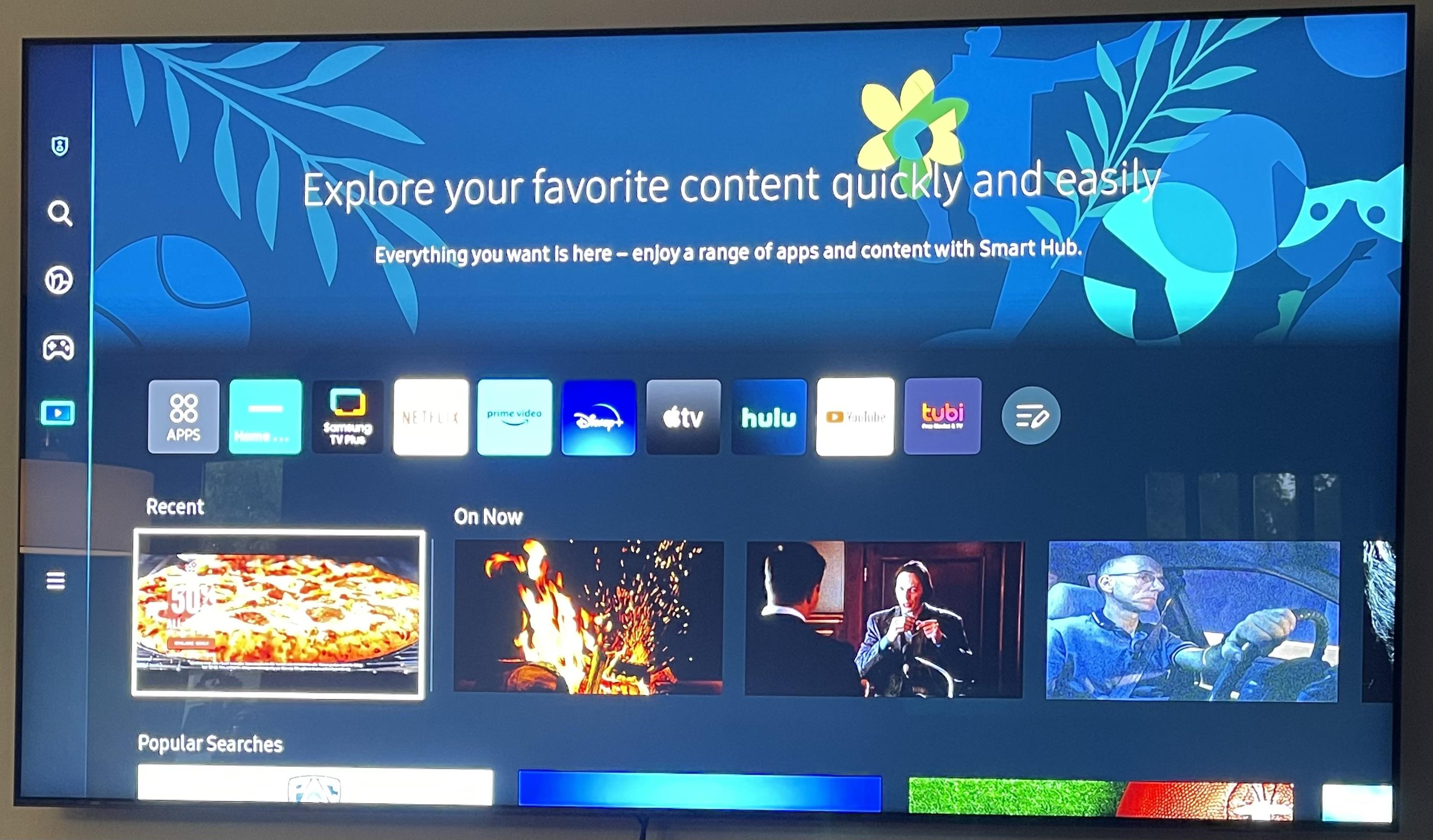
If you launch Peacock on your Samsung smart TV and see a black screen, an error code, or a frozen loading circle, you are not alone. Software glitches, outdated operating systems, and broken network connections cause most of these failures. You can fix the majority of these problems yourself in just a few minutes without calling technical support.
Verify Your TV Compatibility
Peacock does not support every Samsung television visit website Peacocktv.com/tv/samsung. NBCUniversal built the app to run strictly on models running Tizen OS 3.0 or newer. If you purchased your television before 2017, the hardware lacks the necessary specifications to run the platform. You can find your model year by checking the sticker on the back panel or navigating to the system settings. If your model predates 2017, you must use a dedicated streaming device like a Roku or Apple TV plugged into your HDMI Port to access the service.
Perform a Cold Boot
Turning your TV off and on with the remote only puts it in standby mode. This does not clear the active System Memory. To resolve deep software hangs, you must perform a Cold Boot. You have two ways to do this. First, you can hold down the power button on your remote for about five seconds until the television turns off and turns back on displaying the startup logo. Alternatively, you can unplug the television directly from the wall outlet, wait sixty seconds, and plug it back in. This process flushes the RAM and gives the television a completely fresh start.
Update the TV Firmware
Smart TVs require regular software updates to maintain app compatibility. If your television runs an older Firmware version, modern apps like Peacock will fail to load. Grab your remote and open the main menu. Navigate to the Support tab, select Software Update, and choose Update Now. If the system finds a new version, allow it to download and install. The television will restart automatically. Keeping your Operating System current prevents compatibility conflicts with streaming platforms.
Reinstall the Peacock App
Sometimes, the local App Cache corrupts. When this happens, the application gets stuck trying to read broken data. You must delete the app and reinstall it to clear out this bad data. Press the Home button, navigate to the Apps section, and select the Settings gear icon in the top right corner. Find Peacock in your list, select Delete, and confirm your choice. Once the system removes it, search for Peacock in the app store and download a fresh copy visit peacocktv.com/tv. You will need to input your login credentials again, but this often resolves persistent loading errors.
Check Your Network Stability
Streaming high-definition video demands a stable and fast internet connection. A weak signal drops data packets, causing the app to crash or buffer endlessly. Run a Network Speed Test directly through the television web browser. You need a minimum download speed of 3 Mbps for standard video and 8 Mbps for live events or 4K resolution. If your speeds fall below this threshold, restart your Wireless Router. If the television sits far from the router, consider connecting them directly with an Ethernet Cable to bypass wireless interference.
You May Also Like-How to enter code in Microsoft Link website https //microsoft.com/link.
Conclusion:
When Peacock refuses to load on your Samsung smart TV, the problem almost always traces back to a minor software glitch or an outdated operating system. By verifying your model compatibility, clearing the system memory with a cold boot, updating your television firmware, and reinstalling the app, you eliminate the most common failure points. If you complete all these steps and the app still refuses to open, the streaming platform itself might be experiencing a server outage. Check the official Peacock status page online to confirm if the service is down globally before attempting further troubleshooting.
